setup
How to see missed calls on a business phone
Find the call log on the handset, the portal, and the mobile app, then clean the data before you use it to judge staffing or marketing spend.
If you need to know how to see missed calls on business phone systems, start with the call history screen. It may be called Recents, Call Log, My Calls, or Messages and Calls, depending on your provider. The goal is the same: find unanswered calls, see who called and when, and decide which ones need a response.
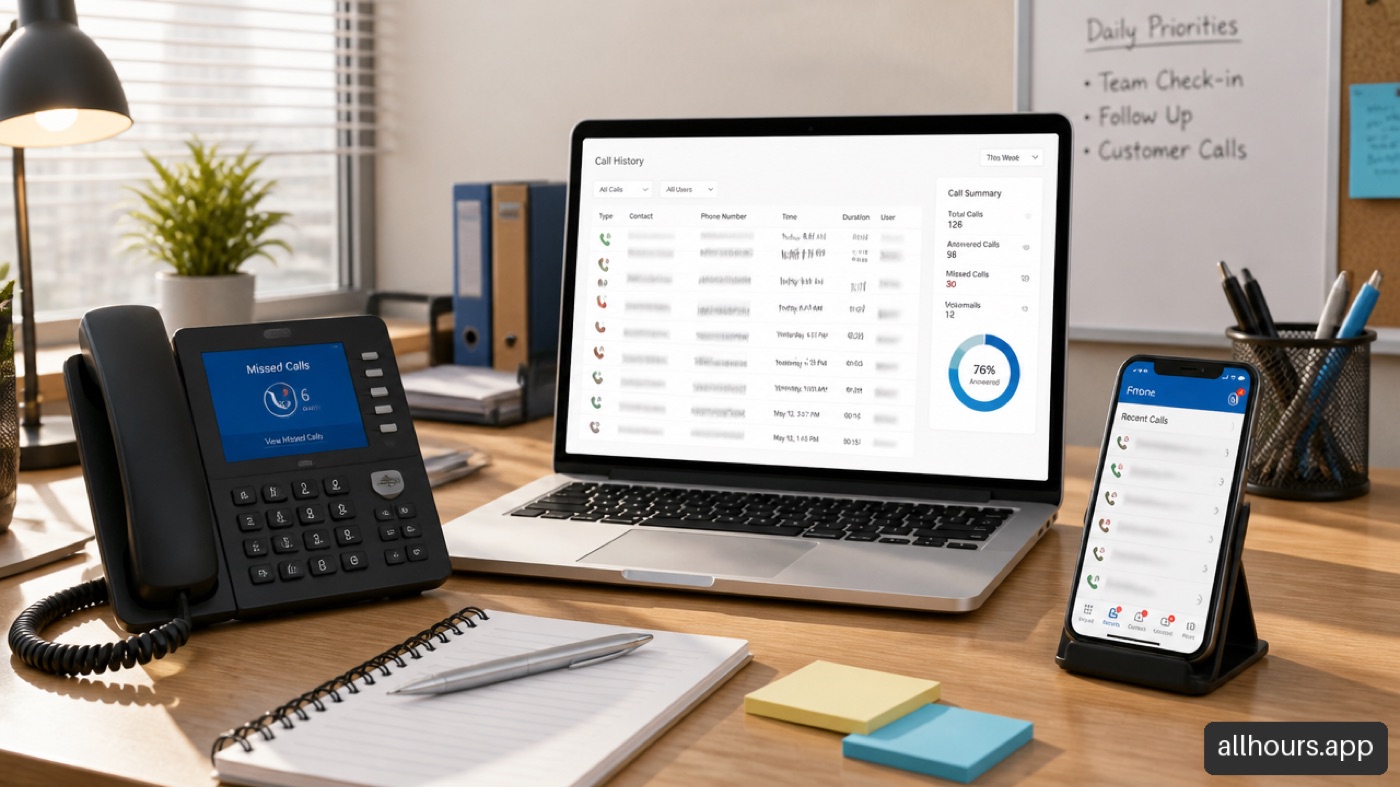
A missed-call count alone is not enough. It can disappear after you open the list, include repeat dialing, or sit on a different line than the one you checked. I recommend treating call history as an operational record, not just a notification. That makes it easier to spot real customer demand, identify coverage gaps, and keep callback data honest.
Table Of Contents
• Find Missed Calls On Your Business Phone
• Read The Call Log Before You Return Calls
• Troubleshoot Missing Call Records And Improve Follow Up
Key Takeaways
• Open Call History, Recents, or Call Log, then filter for Missed calls rather than relying only on a badge.
• Check both the desk phone and your browser portal. The portal can be useful when the handset is unavailable.
• Review missed calls by line, extension, or call group when your business has shared numbers or multiple departments.
• A missed-call badge may clear when viewed. It does not necessarily mean every caller has been called back.
• Remove spam, duplicate repeat dials, wrong numbers, and test calls before using missed-call totals to judge marketing or staffing.
Find Missed Calls On Your Business Phone
Start With The Desk Phone’s Recents Or Call History Menu
Most desk phones put missed calls inside a recent-calls menu. Look for a physical History, Directory, or Messages button, or a screen label such as Recents. From there, select Missed Calls. If the phone only opens a mixed list, use its filter or softkey to isolate missed calls.
The usual sequence is simple:
-
Press Recents, History, or Call Log on the phone.
-
Open the filter, category, or softkey menu.
-
Choose Missed, rather than All Calls, Received, Placed, or Outgoing.
-
Open each entry to review the number, caller name, time, and line or extension.
-
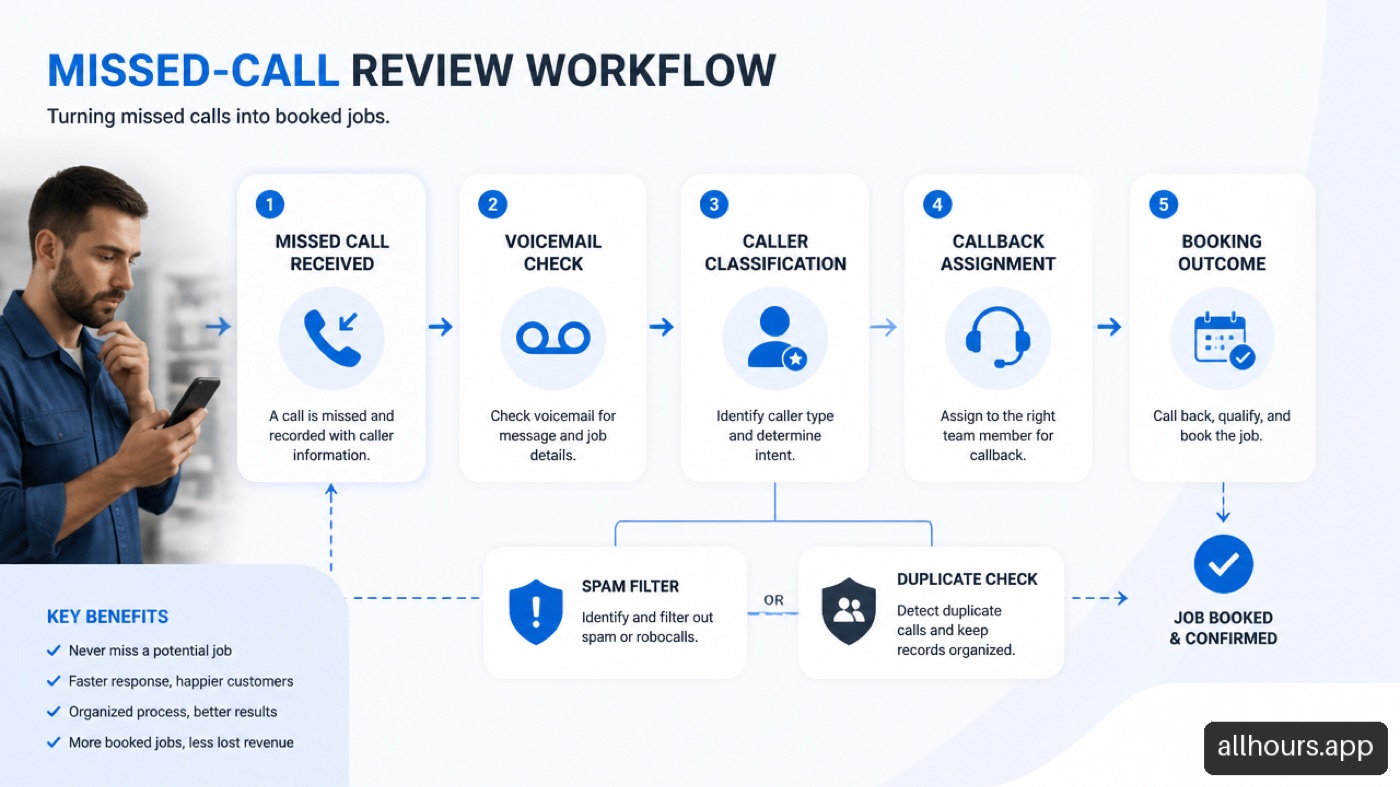
Check voicemail before returning the call, especially if the caller left job details or a preferred callback window.
The exact labels vary. Some systems use received instead of answered, while others call outbound calls placed. For example, AT&T Business Phone documents that users can view call history and filter it by missed, answered, or outgoing call types. The label matters less than the filter result: you want calls that reached your business but were not answered by a person or approved call-handling workflow.
Check Every Relevant Line, Not Just The Main Screen
A common mistake is assuming the missed-call number at the top of the display covers the entire business. On many multi-line phones, it does not. Each line can have its own history and notification state.
Cisco Webex explains that missed-call badging can be line-specific and may clear when that line’s missed-call list is opened. That detail changes how an office should work through callbacks.
Consider a plumbing office with these lines:
| Line Or Extension | Typical Use | What A Missed Call May Mean |
|---|---|---|
| Main office line | New customer inquiries | A possible new job or estimate request |
| Dispatch line | Active customer support | A scheduling change or technician update |
| Emergency line | Urgent service requests | A call that may need immediate review |
| Individual extension | Direct employee contact | A personal callback, supplier, or internal issue |
If the office manager checks only the main line, a missed emergency-line call may never appear in that list. If several phones ring as a call group, the record may also show differently across devices. Review the call log for the line that rang, then check a broader all-lines or group view in the portal if one is available.
Use The Mobile App When Staff Are Away From The Desk
Many cloud business phone systems offer a mobile app that mirrors some call activity. Open the app’s Calls, Recents, or History tab, then apply the missed-call filter. This is useful for owners, dispatchers, and on-call staff who need visibility while away from the office.
Still, mobile views should not be assumed to be a complete audit trail. Depending on your setup, the app may show calls to your direct extension but not every shared queue, ring group, or department number. Before making it your only process, compare one day of mobile-app records with the main portal’s call history.
I recommend using the mobile app for fast awareness and the portal for daily reconciliation. The app helps someone respond quickly. The portal gives the office a better chance of seeing the full record.
Open The Browser Portal For Remote Or Detailed Review
A web portal is often the best place to check missed calls when the desk phone is not in front of you. Sign in through your provider’s user portal or business communications portal, then look for Call History, Call Logs, My Calls, or Messages and Calls.
In many portals, you can search, sort, and export more information than the handset shows. Cisco Small Business documentation, for example, notes that its phone web interface can display missed-call details including caller name, extension, date, and time.
This route is particularly useful when:
• A manager is working remotely.
• The physical phone display is too small to investigate several calls.
• The team needs to search for one caller among many records.
• An employee needs to check activity for an assigned extension.
• The business is comparing phone activity with CRM leads, appointments, or ad results.
Fair warning: some portals hide call-history shortcuts based on account permissions or administrator settings. If you can sign in but cannot find call history, ask the phone-system administrator whether your user role has access to call logs, extensions, queues, and reporting.
Read The Call Log Before You Return Calls
Understand What Each Call Record Tells You
A call log is more useful when the team reads it consistently. While fields differ by provider, a business-phone record often includes the caller number, caller name when available, date, time, call direction, duration, and line or extension.
Use the fields to answer practical questions before calling back:
| Call Log Field | What To Look For | Why It Matters |
|---|---|---|
| Caller name or number | A recognizable customer, local number, or repeat caller | Helps prioritize known customers and likely leads |
| Date and time | Whether the call arrived during work hours, lunch, or after hours | Shows when coverage failed |
| Line or extension | Which number received the call | Separates sales, dispatch, emergency, and direct calls |
| Duration | Whether the call rang briefly or for a sustained period | Can help distinguish a quick disconnect from a likely attempt to reach staff |
| Call status | Missed, received, placed, incoming, or outgoing | Prevents answered and outbound calls from inflating missed-call totals |
| Voicemail indicator | Whether a message exists | Gives context before the callback |
A missed call means the system logged an unanswered call event. It does not reliably mean the caller remains uncontacted. Someone may have returned the call from a personal mobile phone, texted the customer, or handled the request through another channel. Your call-management process needs a separate follow-up status, such as called back, booked, not qualified, or duplicate.
A missed-call list records phone events. A callback workflow records business outcomes. Those are related, but they are not the same thing.
Remove Spam And Repeat Dials Before Reporting Results
Raw missed-call totals can make a phone problem look worse than it is. They can also hide a real problem if staff dismiss everything as spam. The answer is not to delete records immediately. First, classify them.
Create a simple review process with these categories:
• Qualified lead: A new customer or likely appointment request from a service area you cover.
• Existing customer: A caller needing service, schedule help, billing assistance, or an update.
• Repeat dial: The same person called multiple times before anyone responded.
• Spam or robocall: An unwanted automated, fraudulent, or irrelevant solicitation call.
• Wrong number or misdial: A call with no connection to your business.
• Internal or test call: A staff test, vendor test, or another known non-customer event.
For instance, imagine your weekly report shows 42 missed calls. After review, you may find 10 were spam, 8 were five repeat attempts from two callers, 4 were internal tests, and 20 were unique customer contacts. The honest operational number is not simply 42 or 20. Report both:
| Metric | Example Count | What It Shows |
|---|---|---|
| Raw missed call events | 42 | Total phone activity the system marked as missed |
| Unique valid caller opportunities | 20 | Potential customer or service contacts requiring action |
| Repeat-dial events | 8 | Possible evidence of slow response or caller urgency |
| Spam and irrelevant events | 14 | Noise that should not drive staffing decisions |
Repeat dials deserve special attention. Do not strip them from the data and forget them. Group repeat calls by phone number and a reasonable time window, then count the person once for lead volume while noting the number of attempts. A customer who called three times in 12 minutes is one opportunity, but it may indicate a coverage failure more serious than a single missed call.
This is where reviewing the reasons for hang-ups can add context. A call record shows that someone tried to reach you; caller behavior and response timing help explain whether that attempt turned into a booking or disappeared.
Watch Retention Limits Before You Lose The Evidence
Do not assume call logs are permanent. Some systems keep only a recent window, and the limit may be based on number of records, a number of days, or both. AT&T’s My Calls documentation notes that some call logs display only the ten most recent missed, incoming, or outgoing calls.
That is a small window in a busy office. A single morning of activity could push an important record out of view. If missed calls affect revenue, export logs regularly when your platform allows it, or move key records into a CRM, spreadsheet, ticket system, or call-management platform.
Retention also affects investigations. If a customer says they called last month and the record is gone, that does not prove the call never happened. It may mean the phone system no longer retains it in the user-facing log. Check any available reporting module, carrier-level records, or CRM activity before drawing conclusions.
Troubleshoot Missing Call Records And Improve Follow Up
Why A Missed Call May Not Appear
When a caller says they tried to reach you but no missed call appears, work through the path the call took. Do not begin by assuming the caller is mistaken or that the system failed.
Check these possibilities in order:
-
The caller reached a different number. They may have used an old tracking number, a technician’s mobile number, or a location-specific line.
-
The call was answered elsewhere. Another extension, call group member, answering service, or call-forward destination may have picked it up.
-
The record is on a different line. A handset can show missed activity per line rather than in one combined inbox.
-
The call did not ring long enough. A caller who disconnects quickly may produce a different log result, depending on the provider.
-
The log window has expired. Older records may have been removed after reaching a call-count or time limit.
-
Your role lacks access. A portal user may see only personal calls, not department queues or other extensions.
-
The system configuration changed. Call routing, forwarding, queue rules, and portal permissions can alter where a record appears.
A practical example: a roofing company sees no missed call for a lead from Saturday. The office checks the main line and finds nothing. The portal later shows the number rang an after-hours group and was forwarded to an on-call employee’s extension, where it was answered briefly. The lead was not a missing record; it was a routing and follow-up issue.
Build A Callback Workflow That Does Not Depend On Badges
Missed-call badges are useful alerts, but they are poor task lists. They may clear automatically when viewed, and they do not show whether someone contacted the caller. Use a shared workflow instead.
For lower call volume, a simple shared log can work. For higher call volume, connect phone records to a CRM, field-service platform, or intake tool. Each valid missed call should receive an owner and a status.
A workable sequence looks like this:
-
Review missed calls at scheduled intervals, such as every 30 minutes during business hours and at opening after hours.
-
Check voicemail and customer history before responding.
-
Assign one person to the record so two employees do not call the same customer.
-
Log the result: reached, left voicemail, texted, booked, not qualified, duplicate, spam, or no response.
-
Escalate urgent calls using defined rules rather than personal judgment alone.
-
Review unworked valid calls at the end of each day.
The right response speed depends on the service and the caller’s urgency. An emergency electrician or plumbing call may need a different escalation path than a routine cleaning estimate. Either way, the importance of speed to lead is clear in the workflow: the longer a valid caller waits without a next step, the more likely the opportunity moves elsewhere.
Decide When To Add Better Call Coverage
A manual call-log review is reasonable when call volume is low, the office has dependable coverage, and the team can document callbacks consistently. It becomes harder when technicians are in the field, reception staff are tied up, calls arrive after hours, or a growing business has multiple lines and service areas.
At that point, compare the number of unique valid missed callers with actual outcomes. Ask:
• How many valid missed callers received a response?
• How quickly did they receive it?
• How many became appointments, jobs, or consultations?
• Which times, lines, or call groups produce the most missed opportunities?
• Which calls need a human immediately, and which can be scheduled under clear rules?
This distinction matters because the cost of missed calls is not only the count on a phone screen. It is the value of callers who did not receive a timely answer, accurate information, or a confirmed next step.
For businesses that need coverage beyond voicemail, an AI receptionist can handle routine intake, check available appointment times, send confirmations, and route true emergencies to people. The decision should rest on workflow fit, not novelty. Keep humans responsible for exceptions, safety-sensitive issues, complex disputes, and situations where the system lacks enough information to act safely.
Frequently Asked Questions
Where Is The Missed-Calls List On My Office Phone?
Look for Recents, Call History, Call Log, Messages, or a phone icon on the desk phone display. Open that menu and choose Missed Calls. If you see only one line’s calls, switch lines or check an all-lines view.
Can I See Missed Calls By Extension Or By Line?
Often, yes. Many business systems organize activity by line, extension, or call group. Check the line that rang first, then use the portal to look for a broader view if your role permits it. This is important in offices where sales, dispatch, and emergency calls use separate numbers.
Why Did My Missed-Call Badge Disappear?
Some phones clear the badge when you view the missed-calls list. That usually means the notification was acknowledged, not that the calls were returned. Use a follow-up status or shared callback log to track completed work.
Do Missed Calls Also Appear In Voicemail?
Not always. A caller may hang up before voicemail, decline to leave a message, or reach another destination through forwarding. Check both call history and voicemail. Call history shows the attempt; voicemail may provide the reason for the call.
How Far Back Does A Business Phone Keep Missed Calls?
It depends on the provider and account configuration. Some systems retain only a small number of recent records, while others retain calls for a set period. If old calls matter for reporting or disputes, export records regularly or store key events in your CRM.
Can I View Missed Calls From Another Phone Or Browser?
Usually, yes, if your provider offers a user portal or mobile app and your account has permission. A browser portal is often the best option for remote review because it may include search, sorting, extensions, and more detailed call fields than the handset.
What Should I Check If My Call Log Is Empty?
Confirm that you are signed into the correct user account, viewing the right extension or line, and using the missed-call filter rather than a blank category. Then check routing rules, forwarding destinations, user permissions, and retention limits. If the issue began after a system change, ask the administrator to review call-history access and routing configuration.
Sources/References
• AT&T Support — Access your Business Phone call history: https://www.att.com/support/smallbusiness/article/smb-local-long-distance/KM1194880/
• Cisco Webex Help — View Your Recent Calls: https://help.webex.com/en-US/article/asau9i/View-Recent-Calls-on-Your-Phone
• Cisco Small Business — View Missed Calls Through the Web Interface on SPA300/SPA500 Series IP Phone: https://www.cisco.com/c/en/us/support/docs/smb/unified-communications/cisco-small-business-spa300-series-ip-phones/smb1885-view-missed-calls-through-the-web-interface-on-spa300-spa500.html
• AT&T — My Calls: https://www.att.com/hipcs_tour/eu/eu32-mycalls.html